Comment enregistrer une vidéo sur Snapchat Web ?

Snapchat est depuis longtemps synonyme de communication instantanée et de contenu éphémère et amusant. Si l'application mobile en est le cœur, Snapchat Web est devenu une option de plus en plus populaire pour les utilisateurs souhaitant discuter, envoyer des snaps ou même enregistrer des vidéos depuis leur ordinateur. L'enregistrement vidéo sur Snapchat Web diffère légèrement de l'expérience mobile, mais avec les bons outils et les bonnes méthodes, vous pouvez immortaliser des moments, sauvegarder des clips ou même créer du contenu pour des tutoriels ou des archives.
Dans ce guide, nous aborderons tout ce que vous devez savoir sur l'enregistrement de vidéos sur Snapchat Web.
1. Peut-on enregistrer l'écran de Snapchat ?
Oui, techniquement, vous peut Enregistrement d'écran Snapchat — mais il y a des points importants à prendre en compte :
- L'application mobile de Snapchat ne permet pas l'enregistrement d'écran natif sans notifications.
- L'enregistrement d'écran peut être effectué via les outils intégrés de votre appareil (comme l'enregistrement d'écran iOS ou la barre de jeu Windows) ou via un logiciel tiers.
- Sur Snapchat Web, vous n'êtes pas limité à l'interface de l'application mobile, vous bénéficiez donc d'une plus grande flexibilité grâce à l'utilisation d'outils d'enregistrement sur ordinateur.
En résumé, il est possible d'enregistrer du contenu Snapchat, mais la méthode dépend de si vous utilisez un appareil mobile ou un ordinateur.
2. Snapchat envoie-t-il une notification lorsque vous enregistrez votre écran ?
Il s'agit d'une question cruciale pour les utilisateurs soucieux de leur vie privée :
- Application mobile : Oui. Snapchat notifie généralement l'expéditeur lorsqu'une capture d'écran ou un enregistrement vidéo est effectué. Cette notification est un élément essentiel du fonctionnement de Snapchat.
- Snapchat Web : Le fonctionnement des notifications peut varier selon la méthode de capture du contenu. Par exemple, les outils d'enregistrement d'écran tiers ou les enregistreurs d'écran intégrés au navigateur contournent souvent la détection de Snapchat.
3. Comment enregistrer une vidéo sur Snapchat Web ?
Contrairement à l'application mobile, Snapchat Web ne dispose pas d'un bouton « Enregistrer un snap » intégré pour sauvegarder les vidéos sur votre ordinateur. Cependant, plusieurs méthodes pratiques s'offrent à vous :
3.1 Utilisation des enregistreurs d'écran en ligne
Les plateformes d'enregistrement d'écran en ligne vous permettent de capturer des vidéos directement depuis votre navigateur sans installer de logiciel.
Parmi les options populaires, on trouve :
- Screencast-O-Matic – Offre des fonctions simples d'enregistrement et de montage vidéo.
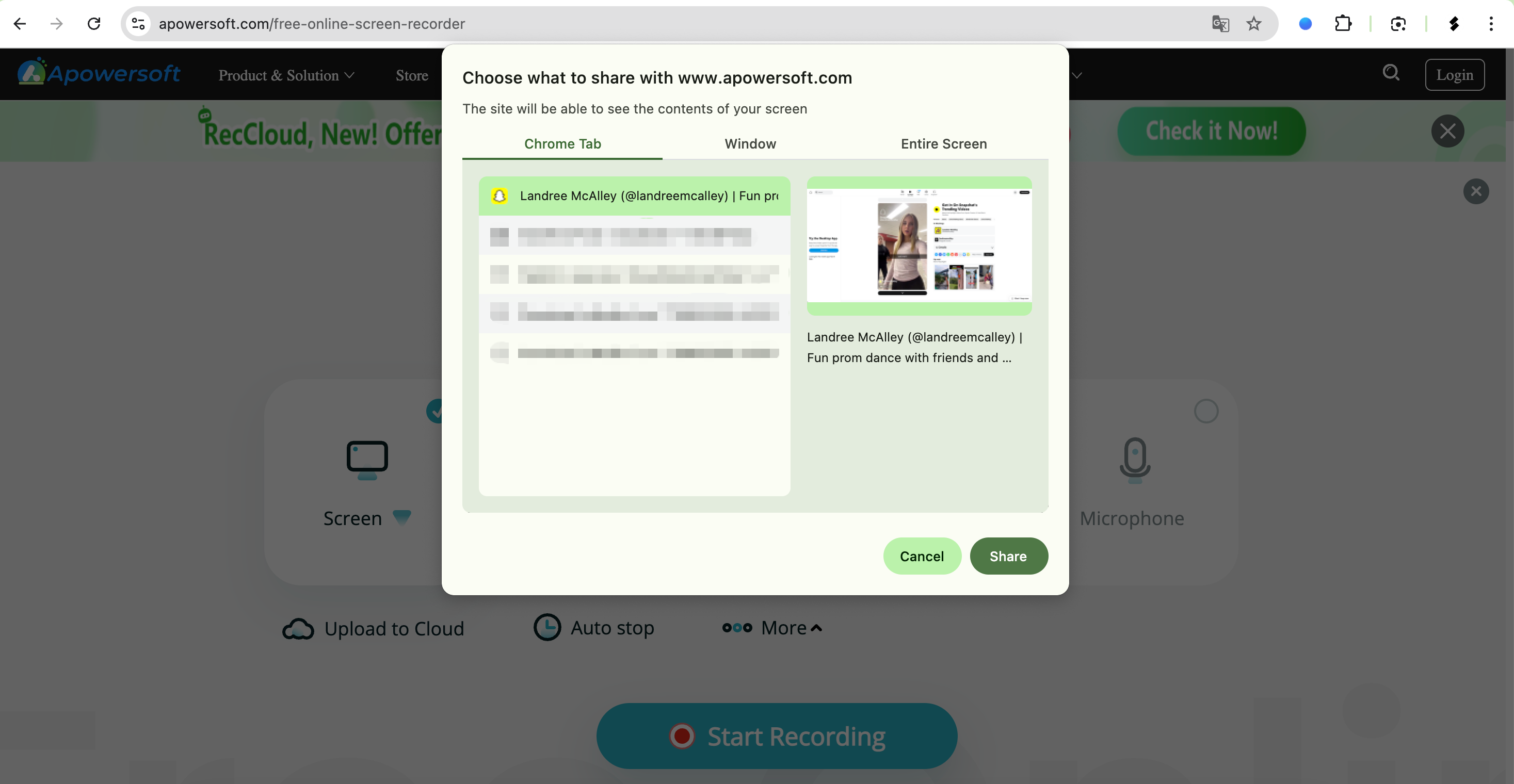
- Enregistreur d'écran en ligne Apowersoft – Gratuit, fonctionnant via navigateur et capable de capturer simultanément l'audio et la vidéo.
Comment les utiliser :
- Ouvrez Snapchat Web dans votre navigateur.
- Lancez l'enregistreur en ligne et sélectionnez la fenêtre ou le plein écran contenant Snapchat.
- Lancez l'enregistrement pendant la lecture de la vidéo Snapchat.
- Arrêtez l'enregistrement et téléchargez le clip.
Avantages:
Aucune installation requise, configuration rapide.
Les inconvénients:
Modifications limitées, présence occasionnelle de filigranes, dépend de la vitesse de connexion internet.
3.2 Utilisation des extensions d'enregistrement de navigateur
Les extensions permettent de simplifier l'enregistrement d'écran directement depuis Chrome, Edge ou Firefox :
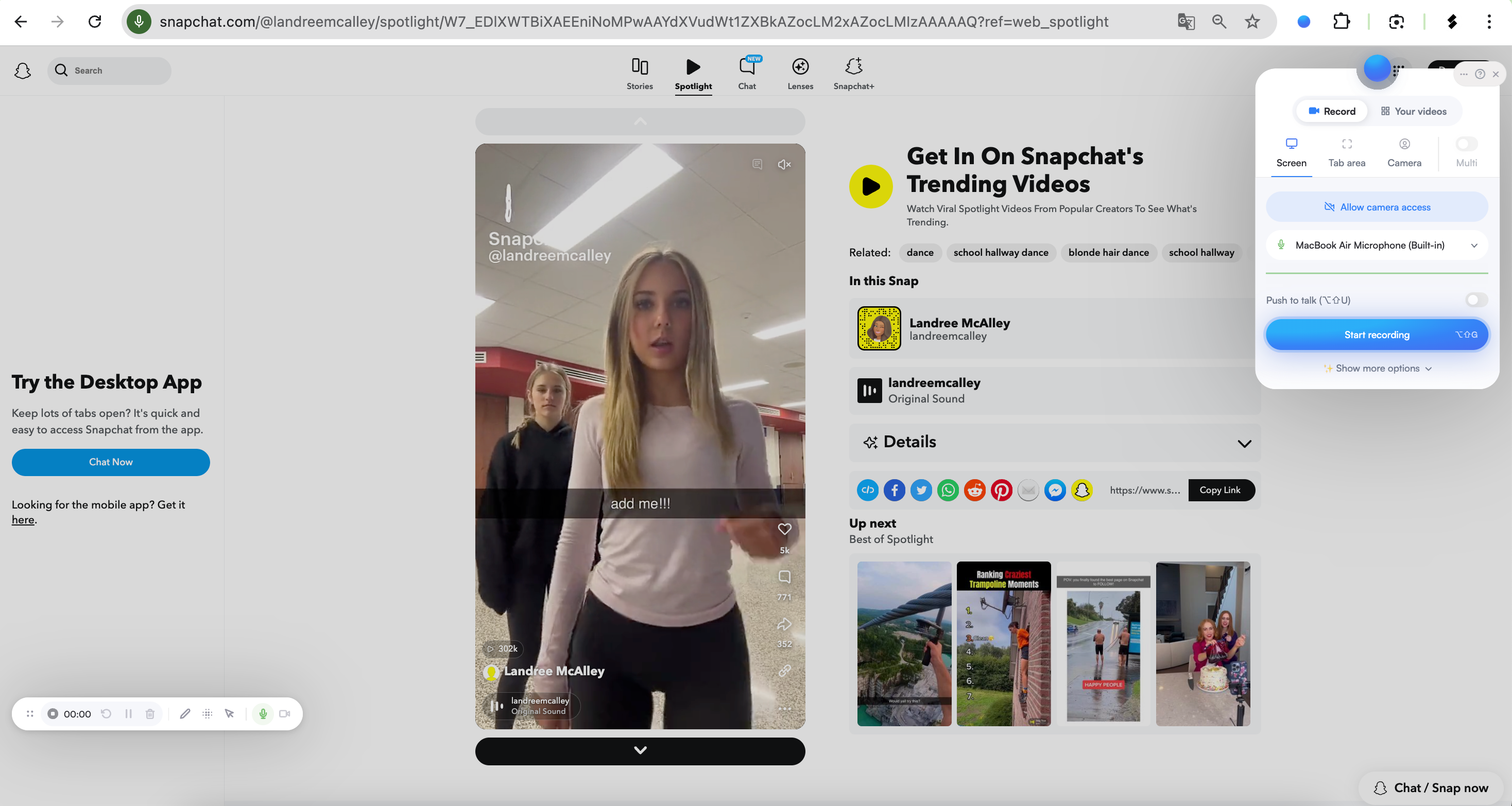
- Screenify – Extension simple qui enregistre les onglets du navigateur, le bureau ou la webcam.
- Capture d'écran et enregistreur vidéo d'écran Nimbus – Enregistre l'écran et permet un montage léger.
Comment les utiliser :
- Installez l'extension (comme Screenify) depuis la boutique de votre navigateur.
- Ouvrez Snapchat Web et connectez-vous, puis cliquez sur l'icône de l'extension et sélectionnez le mode d'enregistrement : onglet, fenêtre ou plein écran.
- Lancez l'enregistrement, puis arrêtez-le une fois terminé ; enregistrez-le localement ou dans le cloud.
Avantages:
Pratique, fonctionne directement depuis votre navigateur, options de téléchargement intégrées.
Les inconvénients:
Certaines fonctionnalités et certaines options d'édition limitées nécessitent des versions payantes.
3.3 Utilisation Swyshare Recordit Logiciel
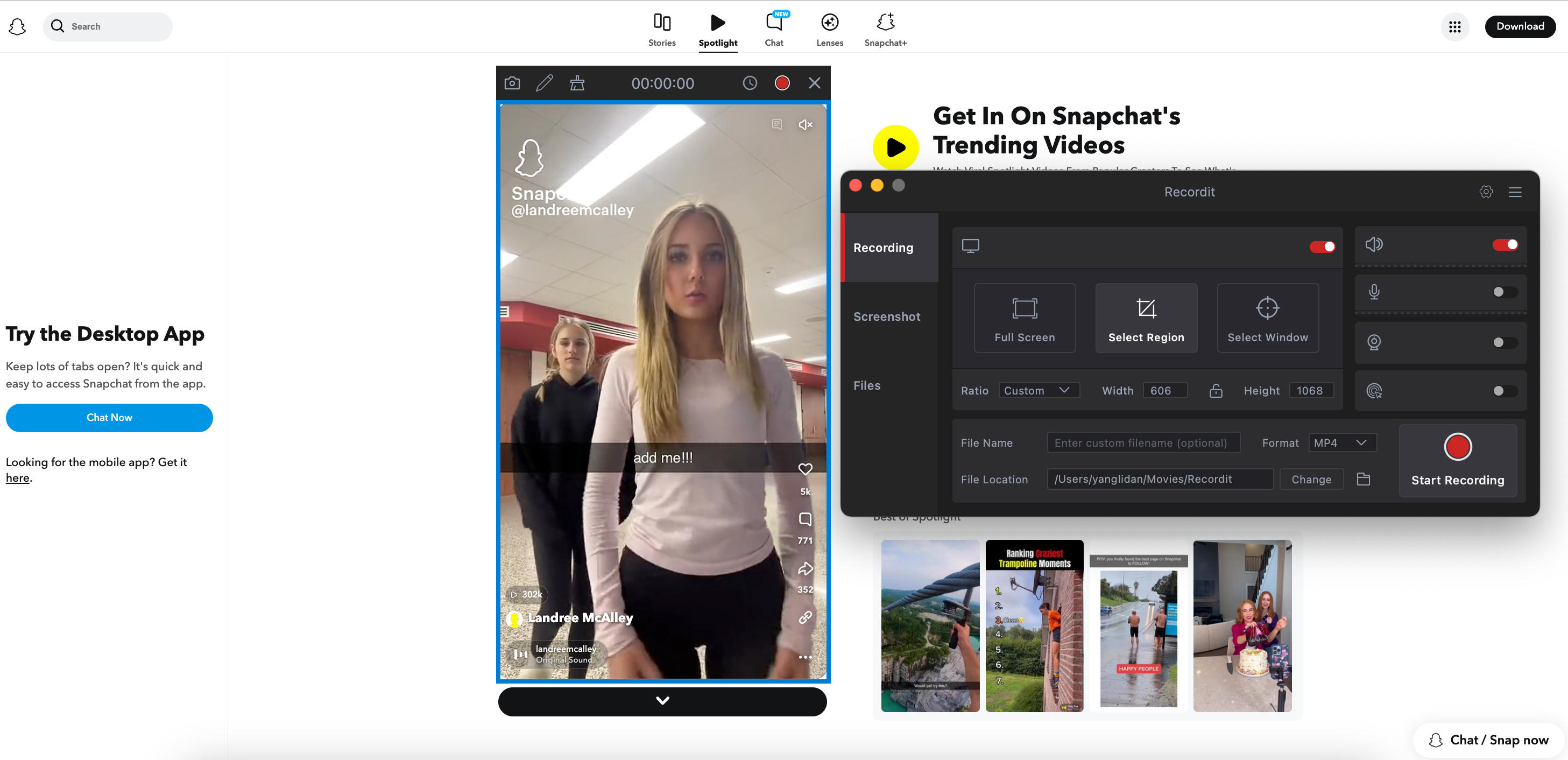
Pour un enregistrement professionnel, fiable et flexible, les logiciels de bureau comme Swyshare Recordit est l'une des meilleures solutions. Contrairement aux outils en ligne ou aux extensions de navigateur, Recordit est une application autonome conçue pour capturer votre écran, votre webcam ou des fenêtres spécifiques avec une haute qualité.
Pourquoi Swyshare Recordit se démarque:
- Enregistrements en HD sans artefacts de compression.
- Capturez une fenêtre, l'écran entier ou une zone personnalisée.
- Enregistrement simultané du son du système et du microphone.
- Programmez le début et la fin de l'enregistrement à l'heure exacte.
- Capturez les 15 dernières secondes ou plus.
- Enregistrez au format MP4, GIF ou MP3 selon vos besoins.
- Raccourcis clavier pour démarrer, mettre en pause ou arrêter les enregistrements sans interrompre le flux de travail.
Comment utiliser Recordit avec Snapchat Web :
- Télécharger et installer Swyshare Recordit pour Windows ou Mac, depuis le site officiel.
- Ouvrez Snapchat Web dans votre navigateur, puis lancez-le. Recordit et sélectionnez la zone d'enregistrement (fenêtre entière ou onglet spécifique).
- Activez le son du système, puis lancez l'enregistrement avant de lire la vidéo Snap.
- Arrêtez l'enregistrement une fois terminé et enregistrez le fichier localement.
4. Conclusion
Bien que les enregistreurs d'écran en ligne et les extensions de navigateur offrent un certain confort, Swyshare Recordit Offre la solution la plus professionnelle, fiable et polyvalente pour enregistrer des vidéos sur Snapchat Web. Elle permet de capturer des vidéos et un son de haute qualité, d'enregistrer des fenêtres spécifiques, d'utiliser des raccourcis clavier et même de revoir instantanément les meilleurs moments.
Pour tous ceux qui prennent au sérieux l'enregistrement de vidéos pour des tutoriels, la création de contenu ou l'archivage, Recordit offre un contrôle et une qualité inégalés. Que vous utilisiez Snapchat Web pour le travail, vos communications personnelles ou vos projets créatifs, disposer d'un outil comme celui-ci est un atout précieux. Recordit garantit que vos enregistrements sont fluides, clairs et prêts à être montés ou partagés.
En bref, si vous souhaitez une méthode simple et professionnelle pour enregistrer des vidéos Snapchat Web, Swyshare Recordit est la solution recommandée.