Comment résoudre le problème d'enregistrement d'écran impossible (erreur 5823) ?

Screen recording is a convenient way to capture tutorials, online meetings, gameplay, presentations, and other on-screen activities. However, encountering the message “Screen Recording Failed to Save Due to 5823” can be frustrating, especially when you’ve finished recording an important video only to discover that it hasn’t been saved.
This error may occur on an iPhone when attempting to stop or save a screen recording. In this guide, we’ll explain what screen recording error code -5823 means, explore practical ways to fix it, and introduce an alternative method for recording your iPhone screen on a PC.
1. What Does Screen Recording Error Code -5823 Mean?
Screen recording error code -5823 is an error that may appear when an iPhone fails to complete or save a screen recording. Instead of successfully adding the recorded video to the Photos app, iOS displays a failure notification.
This issue doesn’t always indicate a problem with the screen recording feature itself. Several factors may prevent a recording from being finalized and saved, including:
- Insufficient storage space : Your iPhone may not have enough available storage to process and save the recorded video.
- Temporary iOS glitches : Software bugs or background system processes may interrupt the recording or saving process.
- Restricted content : Certain apps, streaming services, and protected content may prevent screen capture.
- Recording interruptions : Incoming calls, app crashes, system interruptions, or other unexpected events may interfere with recording.
- Outdated iOS : An older iOS version may contain bugs that affect screen recording stability.
2. How to Resolve Screen Recording Failed to Save Due to 5823?
If your iPhone displays the 5823 error when saving a screen recording, try the following solutions.
2.1 Check Available iPhone Storage
Insufficient storage is one of the first things to investigate. Screen recordings, especially longer videos, can consume considerable storage space.
- Open Settings and navigate to General > iPhone Storage > Check how much available space remains.
- Delete unnecessary apps, photos, videos, and other unwanted files, then try recording your screen again.
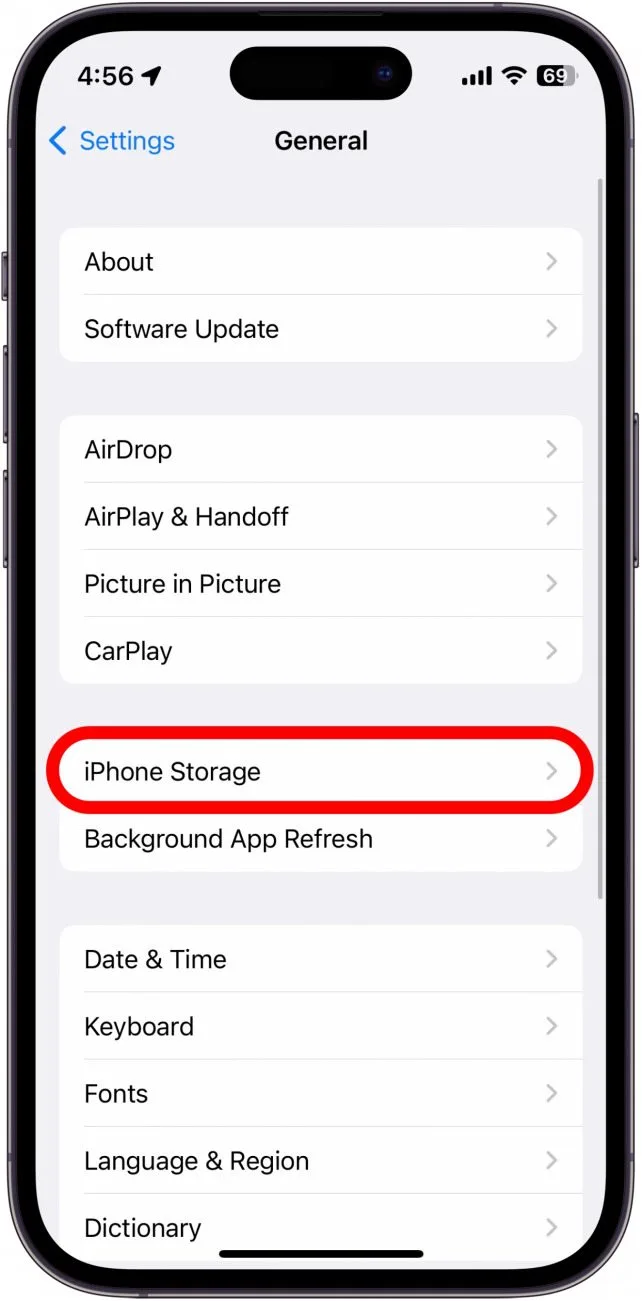
Make sure your device has enough free space to accommodate the recording.
2.2 Restart Your iPhone
Temporary software glitches may interfere with the recording or saving process. Restarting your device can refresh system processes and resolve minor problems.
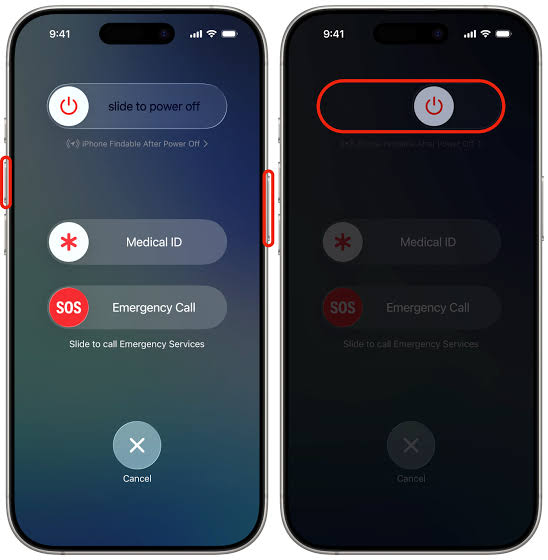
- Press and hold the side and volume buttons, then drag the power-off slider.
- Wait 30 seconds, then turn your iPhone back on and try screen recording again.
2.3 Update iOS to the Latest Version
An outdated iOS version may contain bugs that affect built-in features, including screen recording.
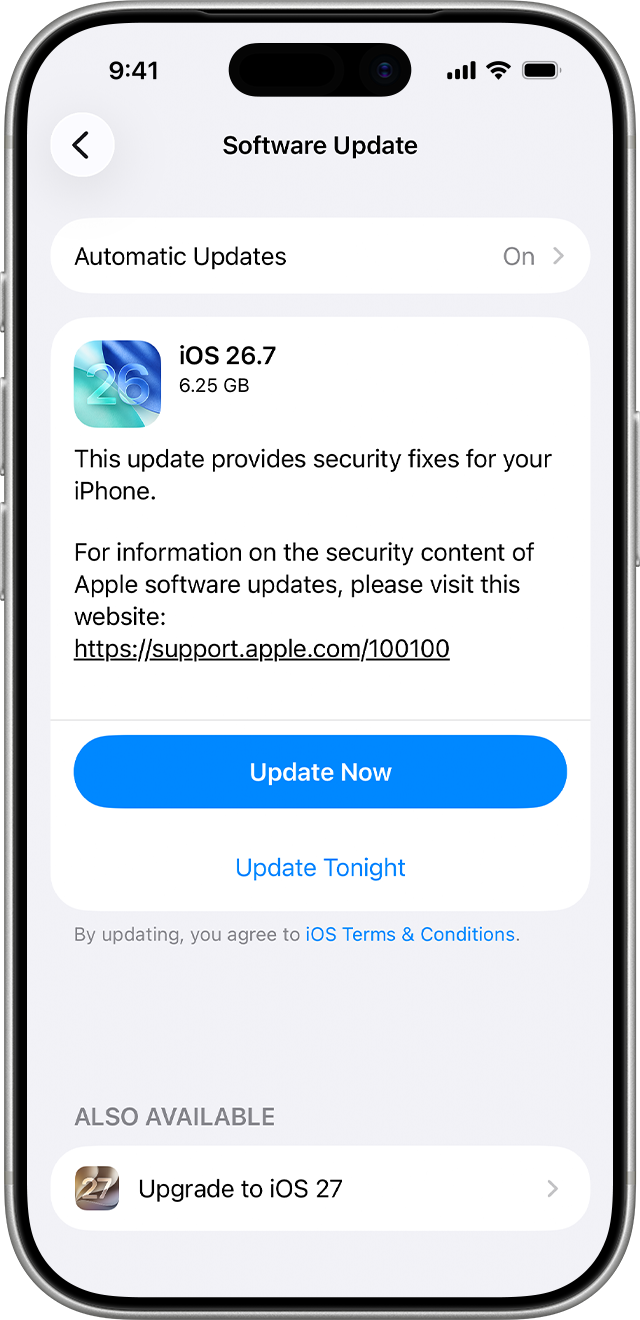
- Go to Settings > General > Software Update > Install any available update.
- Restart your iPhone and try screen recording again.
2.4 Check Screen Recording Restrictions
Screen Time settings, device management policies, or individual apps may restrict screen recording.
- Open Settings > Screen Time > Select Content & Privacy Restrictions > Review your restriction settings.
- Check whether screen recording or related functionality is restricted.
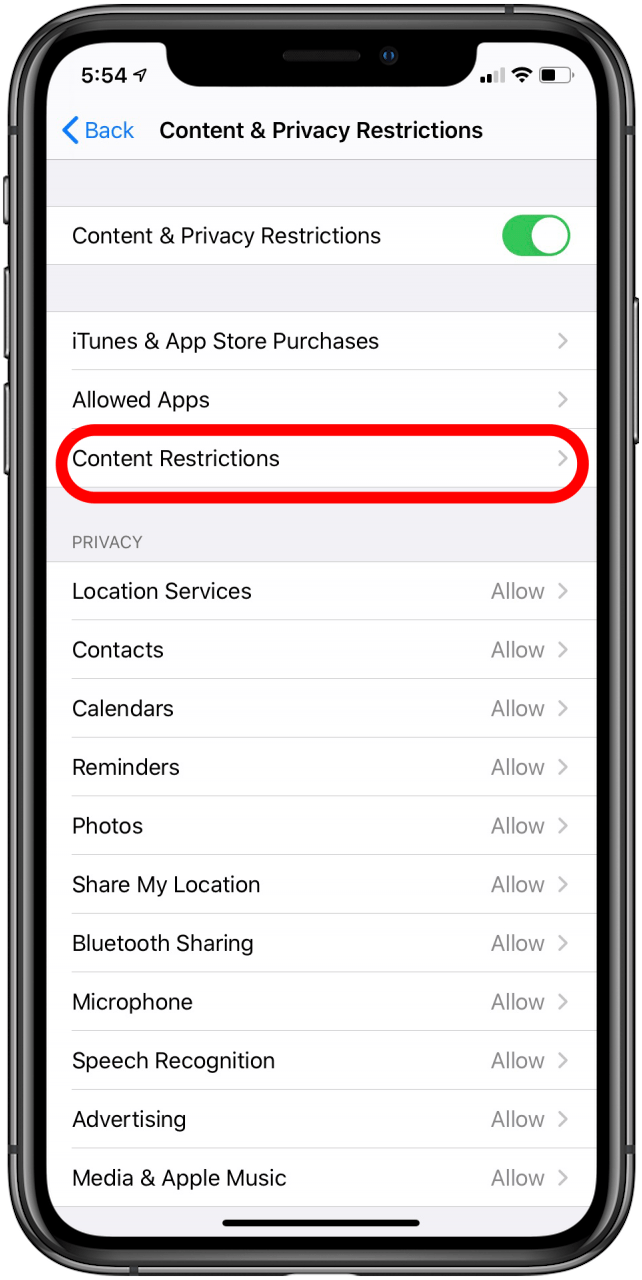
If your device is managed by a school or workplace, contact the administrator if recording is disabled by an organization policy.
2.5 Close Unnecessary Background Apps
Running too many resource-intensive apps simultaneously may affect device performance and interrupt recording.
- Open the App Switcher, then wwipe away unnecessary or unresponsive apps.
- Wait a few seconds, then open the app you want to record and start a new recording.
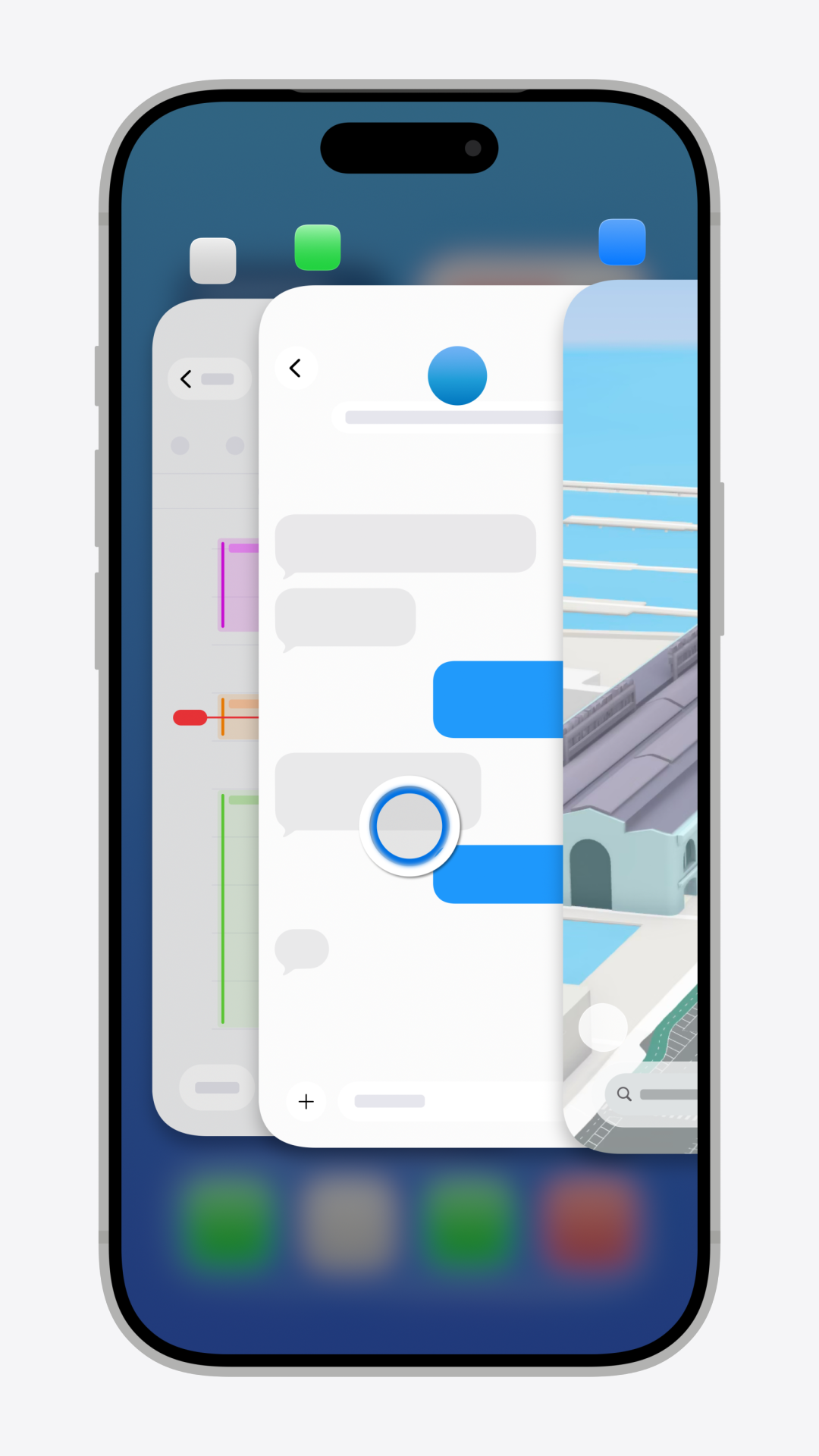
This can help reduce background activity and improve recording stability.
2.6 Turn Off Microphone Audio
Audio-related issues may sometimes contribute to recording problems. Try creating a recording without microphone input.
- Open Control Center, touch and hold the Screen Recording button.
- Turn off the Microphone option and tap Start Recording.
- Stop the recording and check whether it saves successfully.
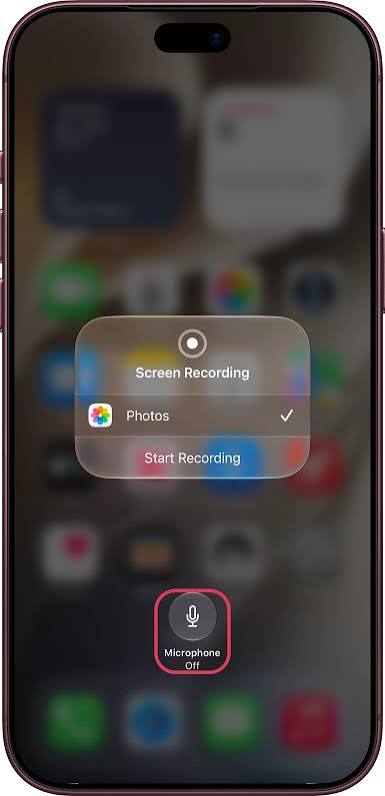
If the recording works, you can try enabling the microphone again later.
2.7 Disable Screen Mirroring
If your iPhone is actively mirroring its display through AirPlay, disconnect the mirroring session and test the built-in recorder again.
- Open Control Center > Tap Screen Mirroring > Select Stop Mirroring.
- Wait for the connection to end, then start a new screen recording.
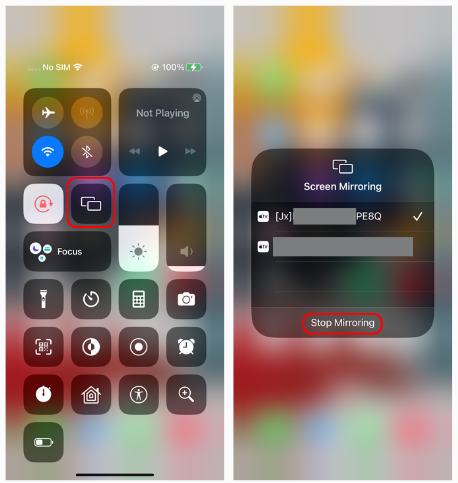
This helps determine whether an active mirroring session is contributing to the problem.
2.8 Reset All Settings
If none of the previous solutions works, incorrect system configurations may be contributing to the issue. Resetting all settings can restore default preferences without intentionally deleting your personal files.
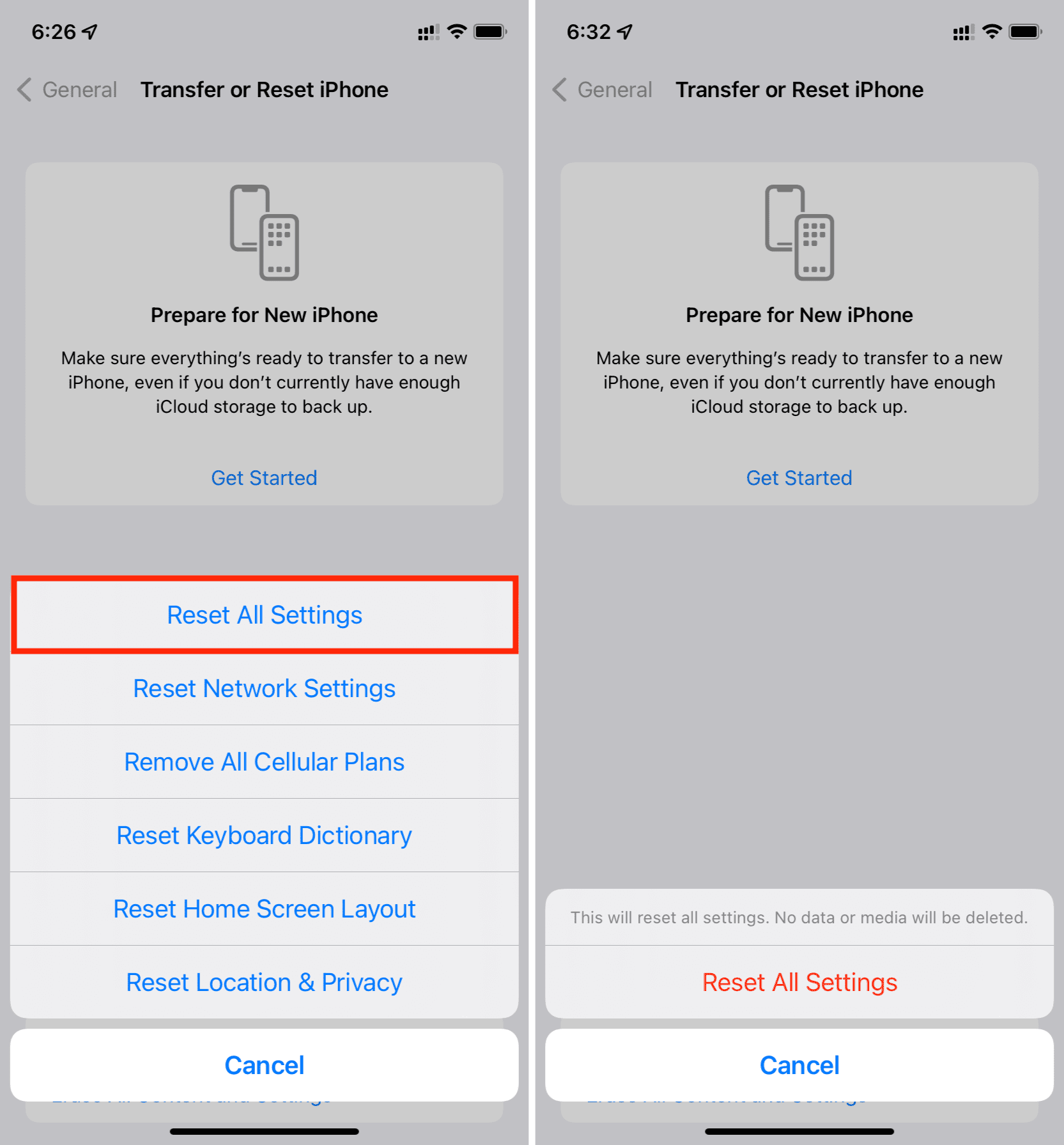
- Go to Settings > General > Transfer or Reset iPhone > Reset > Reset All Settings, enter your passcode, and confirm.
- Restart your iPhone and test screen recording again.
3. Advanced: Record iPhone Screen on PC with Swyshare Recordit
If the built-in iPhone screen recorder continues to display error code -5823, or you want more flexible recording options, consider using Swyshare Recordit .
Caractéristiques principales Swyshare Recordit :
- Mirror your iPhone/Android to a Windows or Mac computer and capture its displayed content.
- Capture videos in resolutions up to 2K or 4K at 60 FPS.
- Record system audio, microphone input, and webcam footage.
- Support schedule recording, instant replay and adding mouse effects.
- Trim recordings, adjust the canvas, change output resolution, and add backgrounds or watermarks.
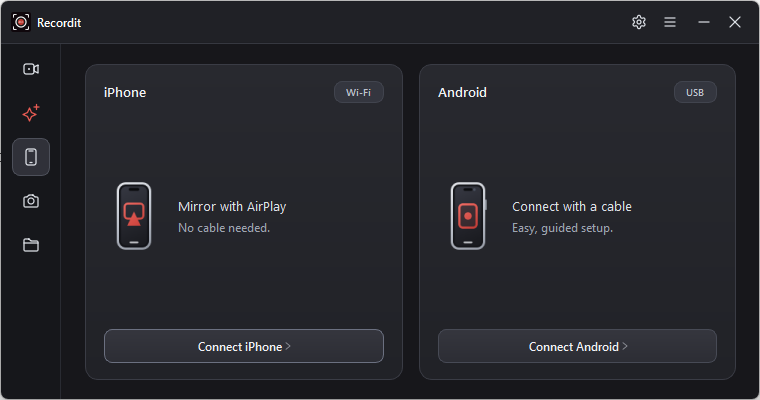
Steps to record an iPhone screen on PC with Recordit :
- Download and install the appreciate version of Recordit , then run it on your device.
- Select the iPhone screen recording (Mirror with AirPlay) option in Recordit and connect your iPhone to the computer.
- Open Control Center on your iPhone, tap Screen Mirroring, and select Recordit .
- Once connected, configure your video and audio settings.
- Click Start Recording to capture your iPhone screen, then click Stop Recording when finished.
4. Conclusion
The “Screen Recording Failed to Save Due to 5823” error can be frustrating, particularly when you’re trying to capture important content. Fortunately, checking available storage, restarting your iPhone, updating iOS, reviewing recording restrictions, and resetting system settings may help resolve the problem.
If the built-in recorder still fails, Swyshare Recordit offers a convenient alternative. It lets you record your iPhone screen on a PC with flexible capture options, audio and webcam support, high-resolution recording, and built-in editing tools. Try Recordit for a more reliable and versatile recording experience.